Note
Access to this page requires authorization. You can try signing in or changing directories.
Access to this page requires authorization. You can try changing directories.
The Teams admin center includes dedicated pages and UI experiences for managing agents and apps. You can view and manage all agents and apps that are available in Teams for your organization from the Manage apps page.
Microsoft 365 agents and apps can be managed from both the Teams admin center and the Microsoft 365 admin center.
From the Manage apps page, you can review agents and apps before allowing them, access support information, and control their availability across your organization, either per user or per app. Starting from April 2025, tenants are automatically migrated to app centric management.

The Teams admin center now includes Apps to consider allowing tile on the Manage apps page. This tile displays counts of Microsoft 365 certified and publisher-attested agents and apps, helping admins quickly identify trusted agents and apps. Select a count to filter the list and simplify management.
A new Security and Compliance tab on each app’s details page displays its certification status, publisher attestation, and key security attributes etc. For more information, see App compliance program for security, data handling, and privacy.
To use Teams admin center, you must have a Teams Administrator role. Some admins with a higher privilege role can accomplish agent and app governance tasks but we recommend using the lower privilege role where possible. For details, see Teams administrator roles and Microsoft 365 administrator roles.
Note
You can only view and manage agents and apps that are deployed in the same release channel as your tenant is. For example, if your tenant is in the general release then you can't manage agents and apps that are deployed in the private or public preview channels. This isn't an issue for agents and apps that are released to the general release channel.
Agent and app management use cases and the available interfaces
Management tasks that are supported in admin center are tabulated as follows.
| Management use cases | Link to the interface | Documentation |
|---|---|---|
| Control which agents and apps are available to users in your organization by allowing and blocking them. You can also upload and approve custom agents and apps. After managing agents and apps on this page, you can use app permission and setup policies to configure what agents and apps are available for specific users in your organization's agent and app store. | Manage apps in Teams admin center | Current article |
| Specific users and groups that you select can access the agent or app. Supported group types include Security groups, Microsoft 365 groups, Dynamic user membership groups, Nested groups, and Distribution lists. Guest users can't access the agent or app, even if they’re assigned to it. | TAC-Dashboard | Access Control for Apps |
| You can customize the Teams agent and app store with your organization's logo, custom background, or color. | Customize store | Customize your organization's app store |
| The Teams agent and app usage report provides information about which agents and apps in use, active users, and other usage information. | Usage reports | Teams app usage report |
| Your users can add agents and apps when they host meetings or chats with guests. They can also use agents and apps shared by guests when they join meetings or chats hosted externally. The data policies of the hosting user's organization, and the data sharing practices of any third-party agents and apps shared by that user's organization, are applied. | External access | App behavior depending on types of users |
| With guest access, you can provide access to applications and other Teams functionality to people outside your organization, while maintaining control over your corporate data. | Guest access | Guest access in Teams |
| Teams update policies are used to manage Teams and Office preview users who can see prerelease or preview features in the Teams app. | Teams update policies | Teams public preview |
Agent and app governance
Manage org-wide app settings
Use org-wide agent and app settings to control whether users with an F license get the tailored frontline agent and app experience. Check if users can install third-party agents and apps, or upload custom agents and apps in your organization. If there are no admin configured agent or app settings, then org-wide settings are the default.
On Manage apps page, under the Actions menu, select Org-wide app settings. You can then configure the settings in the pane.

Under Tailored apps, turn off or turn on Show tailored apps. When this setting is on, users with an F license get the tailored frontline agent and app experience. This experience pins the most relevant agents and apps in Teams for frontline workers. To learn more, see Tailor Teams apps for your frontline workers. This feature is available for F licenses.
Under Microsoft apps, a single control automatically enables users to install and use any available agents and apps by default.
Under Third-party apps, a single control manages the bulk availability of both the new and existing third-party agents and apps.
Under Custom apps, turn off or turn on Let users install and use available apps by default option. This setting controls whether users can install and use the custom agents and apps that you make available to them. To learn more about custom agents and apps, see how to manage custom apps.
Select Save. The settings take effect after a few hours.

Admin center settings might allow your users to collaborate with users from other organizations. To understand how agents and apps work with external users in meetings, see Teams apps for external attendees.
Install or allow users to install and uninstall
IT admins can install Teams agents and apps for some or all users in their organization. Developers might create some Teams agents or apps to work on Outlook and Microsoft 365 Apps (formerly office.com). You can easily preinstall them on all the supported hosts. Alternately, you can let users install agents and apps on their own. A few supported agents and apps can also be auto installed if a user uses it outside Teams. For details, see how to preinstall apps.
Manage org-wide app settings for Microsoft 365 Government
In a Microsoft 365 Government - GCC, GCCH and DoD deployment of Teams, all third-party agents and apps are blocked by default. In GCC, you see the following note about managing third-party agents and apps on the app permission policies page in the Microsoft Teams admin center.

Manage apps in 21Vianet and air-gapped cloud environments
In Microsoft 365 operated by 21Vianet and air-gapped cloud environments, you get an overview of the apps on the Teams apps > Manage apps page.
To view more details of an agent or app, select the agent or app's name to access the app details page. You can allow or block the agent or app for your users.
Allow or block
As an admin, you control access to all types of agents and apps that are used across your organization. Know the different Types of Apps, which you can access. Teams provides granular controls to configure access for each agent and app and for each user. To allow an agent or app, you must do all of the following settings. To block an agent or app, use any one of the following settings:
| Method | Scope | Use case |
|---|---|---|
| Org-wide app settings | Org-level | Use this setting to allow use of relevant apps in your org. |
| App centric managemen | User-level | Let all users or let specific users use an app. |
You can allow or block specific agents and apps on either the Manage apps page or in the app details page. If your organization isn't migrated to unified app management, allow or block the agent or app in Teams admin center and under the Integrated apps page in Microsoft 365 admin center. If your organization is migrated to unified app management, allow or block the agent or app in Teams admin center or under the Integrated apps page in Microsoft 365 admin center. See Unified agent and app managementto understand how you can unify agents, apps availability across both the admin centers.
The Manage apps page displays all the available agents and apps and the current org-level app status. To allow or block an agent or app in TAC, follow these steps:
Sign in to the Teams admin center and access Teams apps > Manage apps.
Select the app on the Manage apps page and select Allow or Block option.

Alternately, click on the agent or app name to open its details page. Change status between Allowed and Blocked.


Use agent and app assignment through app centric managementto define user access for agents and apps. The previous App permission policies is deprecated.
When a developer publishes an agent or app to the Teams store, some may need an admin to configure it. Before an admin allows an agent or app, it shows as Blocked by publisher in the admin center. Before you allow it for users, follow the publisher's guidance to configure it.
To block all third-party agents and apps, open the Org-wide app settings on the Manage apps page and disallow the use of third-party apps. With app centric assignment you can also block apps created by Microsoft.
Note
From within the Teams client, your users can request you to allow the agents and apps that aren't available for them. You receive notifications and can allow it. For details, see View and manage user requests. If your organization is migrated to unified app management, you can allow agents and apps in Teams admin center or under the Integrated apps page in Microsoft 365 admin center. For more information, see Unified agent and app management. Until your tenant is migrated to unified app management, ensure that the settings in both admin centers, such as blocked apps or org-wide app settings, remain synchronized. This measure prevents unexpected disruptions or issues with agent and app functionality.
Export agent and app catalog as CSV
As an admin, you can export the entire agent and app catalog for your org from the Teams admin center. It can help you to coordinate with admin and security teams to evaluate agents and apps, verify availability, verify status, and more.


Support information for agents and apps
You might have queries about admin settings or configuration, user flows and agent and app features, troubleshooting, and more. You can receive support information about agents and apps from the following two different sources:
We don't provide direct customer support for Teams agents and apps but we provide the following safeguards, health checks, and certification methods for apps:
We proactively check Teams agents and apps for issues and inform the developer to update their agent or app. Scenarios covered are related to agent or app health, functional issues reported by users to Microsoft, security issues, and so on. For details, see Microsoft enforcement actions for published apps.
For Publisher Attested and Microsoft 365 certified agents and apps, Microsoft offers security and compliance information. If app developers consent, Microsoft provides admins with the option to download the detailed evidence submitted by developers during the certification audits for agents or apps.
We test all agents and apps as part of its app validation program to ensure that all agents and apps work as advertised. If they don't work as suggested in the store listing, then we contact app developers to request an update to the agent or app. If app developers don't make the requested updates after a few reminders, we proactively remove the agent or app from Teams.
Certification of agents or apps using Microsoft 365 app compliance program ensures that agents and apps are compliant with the industry-standard frameworks.
Developer-provided agent and app information, support, and documentation
App developers provide customer support, publish updates and fixes, and share security, compliance, and service agreement details through the admin center app page. For direct support requests and inquiry about agent or app updates, contact the app developer at their website address available at the following two places:
- App details page of the app in Manage apps page in Teams admin center.

- Details + support tab of the agent or app's AppSource page.

Privacy and data access considerations: In the terms of use and privacy policy of any agent or app, the app developer discloses what data their agent or app uses and how it handles the data. This information is available on app developer's website and you can access the URLs in the app details page in Teams admin center. Many app developers choose to undergo the Microsoft 365 app compliance program. The program checks and audits an agent or app against controls that are derived from leading industry-standard frameworks. The detailed information about each such agent or app is available at Teams Apps Security and Compliance.
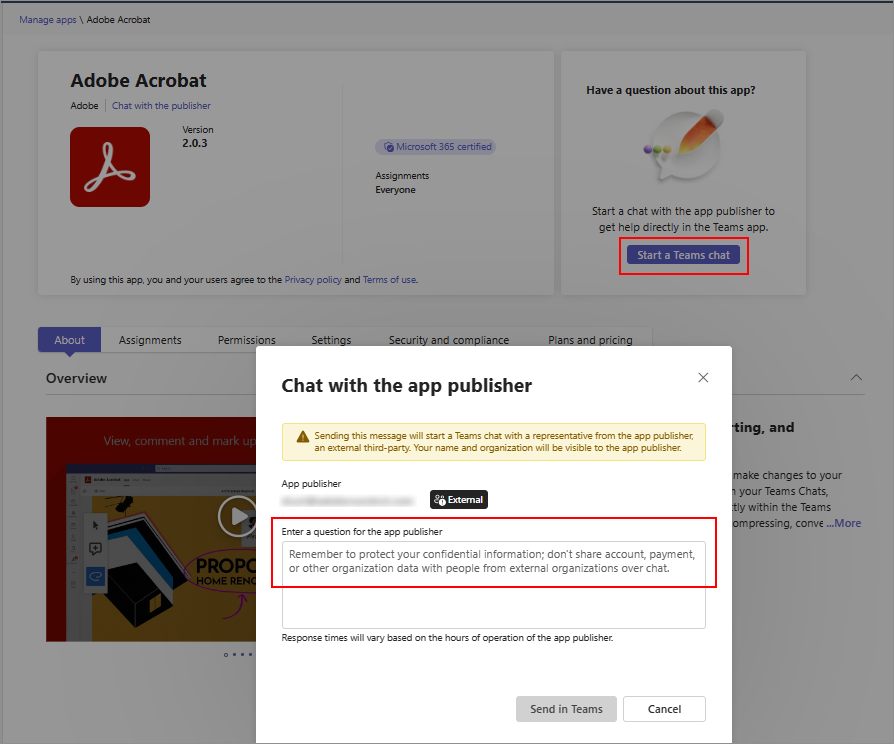
App developers can provide their contact information that you can use to chat with them. It helps you quickly evaluate an agent or app and get the needed information from the app developers before you adopt and roll it out. Examples include compliance information, certifications, data handling practices, pricing details for paid apps, and setup instructions. You can start a chat with app developers by selecting Start a Teams chat but only if the app developer provided their contact information. We recommend that you don't share personal and sensitive information in the chat